Configure Mapping & Default Values
Step 2: Configure Mapping
Section titled “Step 2: Configure Mapping”Click “Continue” to proceed to the export mapping screen. If you plan to share your output with a third party, you can replace the default Shopware column titles with the names your partner requires. Simply enter the new values in place of the defaults, and the Improved Import, Export & Mass Actions app will automatically apply the necessary changes.
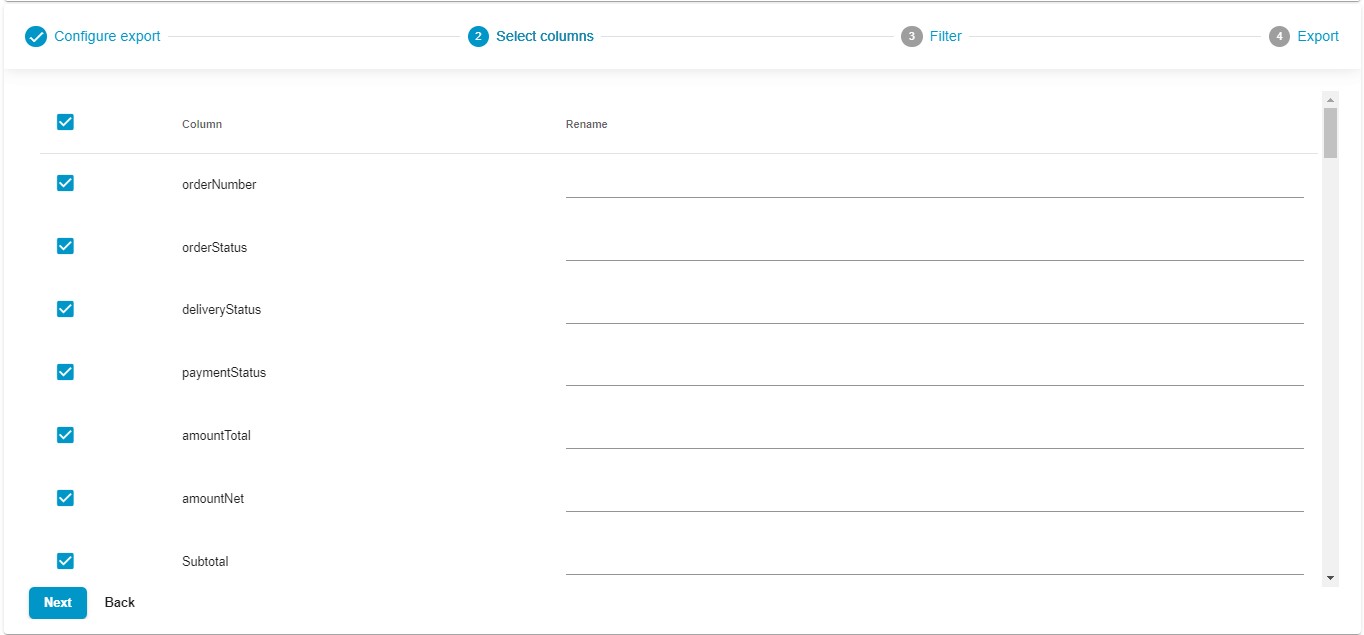
Keep in mind that you can export only the columns you need by unchecking those that aren’t necessary for your output.
It is also possible to export custom fields separately, with each custom field getting its own column. This feature applies to both products and orders. Previously, all custom fields were exported in a single column, but now you can find each custom field listed as a separate field on the mapping screen. If you have a saved export profile for orders and later create new custom fields, add values, and save the order, these new custom fields won’t be included in the export using the existing profile. To include the newly created custom fields, you’ll need to create a new profile, ensuring that everything is exported successfully.
Additionally, the latest version of our application allows you to rearrange the order of columns and add default values as needed:
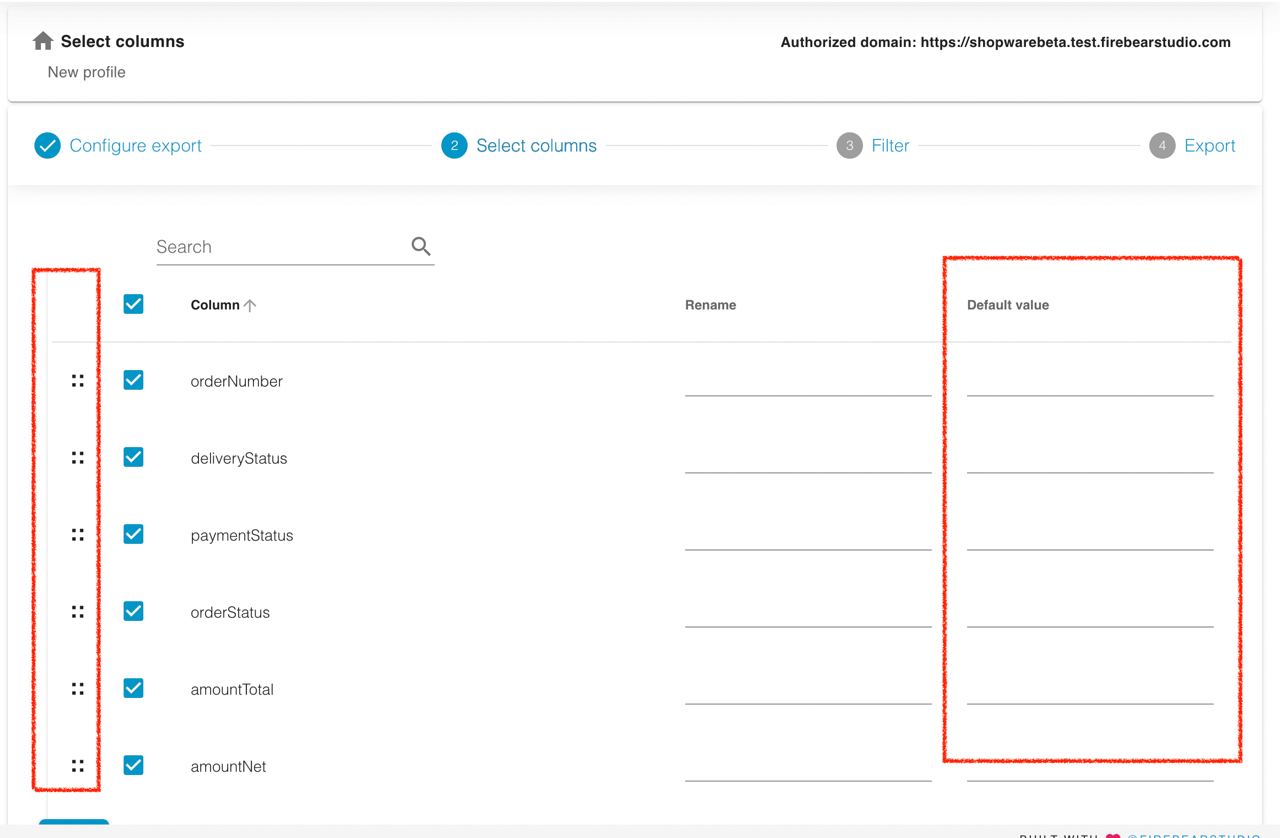
- Column Sorting: Now, during export, you can easily sort columns, arranging them in the desired order within the export file. This feature provides you with greater control over the layout of your data.
- Default Values: You can also include default values when exporting. This means that if a specific attribute has no value, the export file will automatically include the designated default value in its place. This simplifies data management and ensures consistency in your exports.
Column sorting is achieved through a simple drag-and-drop interface, and these enhancements apply to all entities, including products, orders, and customers. For more information, follow our Guide to Shopware Mapping.
Default Values
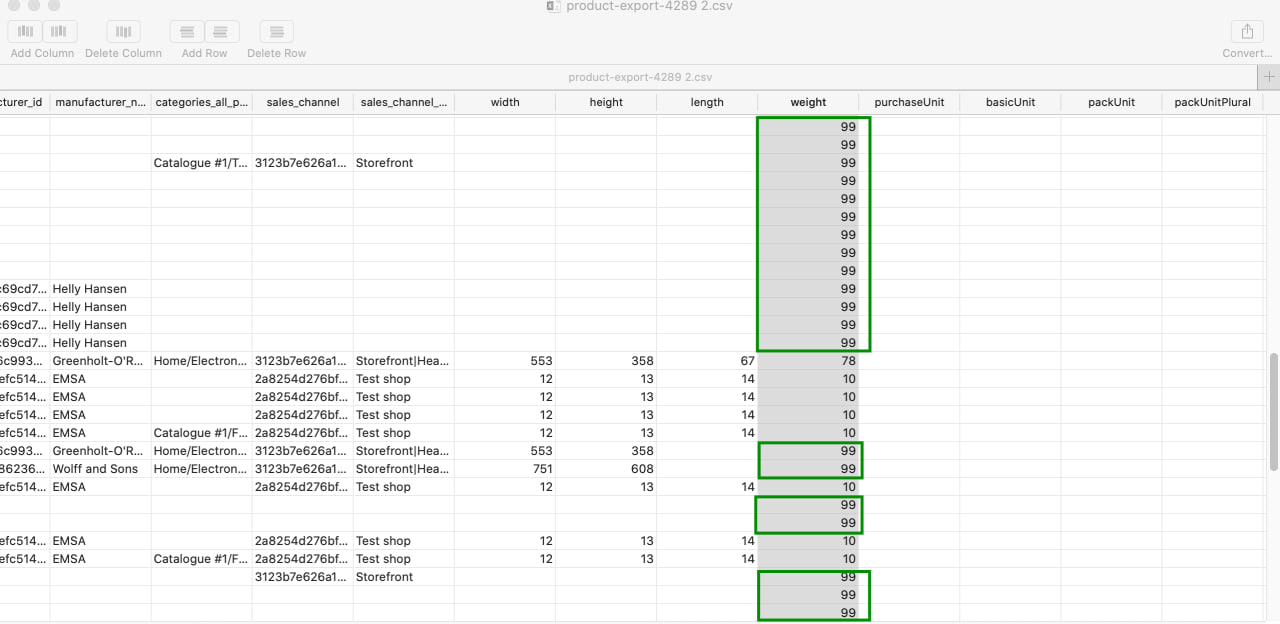
Section titled “Default Values”The latest version of our app allows you to apply default values to the data you export. A default value is automatically assigned if an attribute in your export file has no value specified. For example, if you set a default value of “99” for the weight attribute, this value will be applied to any products that do not have a weight specified after the export.
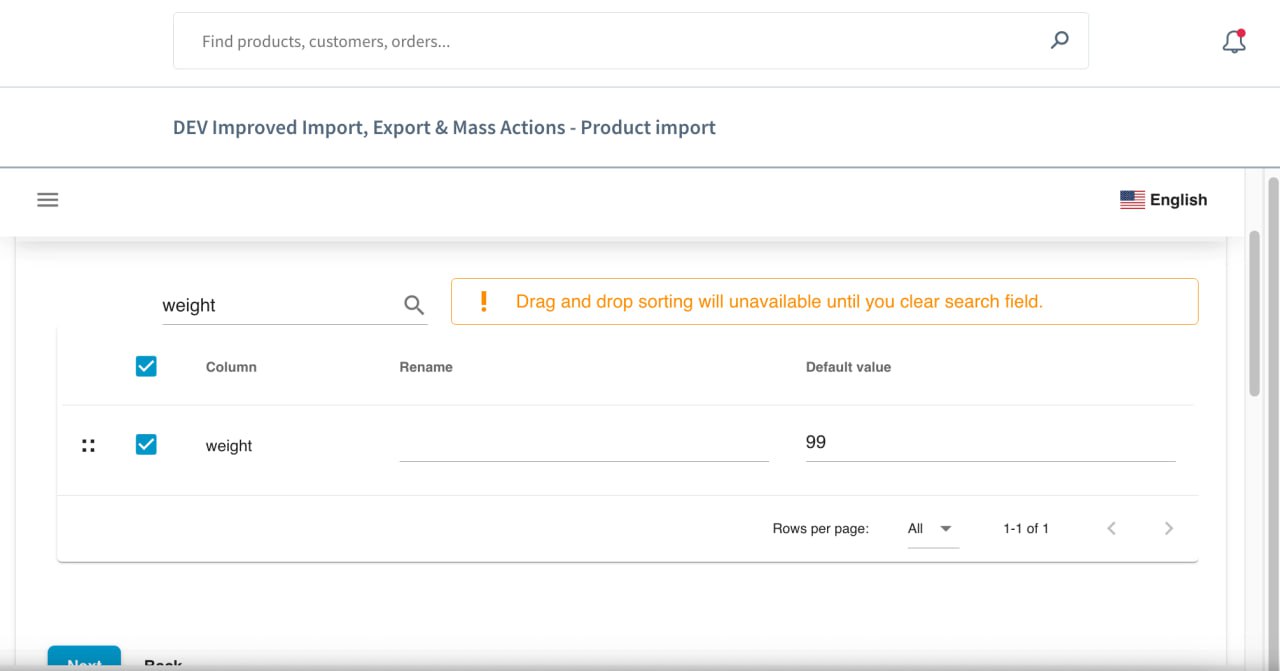
Products with a specified value for the weight attribute in the admin will retain that value — the default value will be ignored in such cases.