Configure Mapping
In the Configure Mapping section, you’re prompted to match the columns from your imported file with the corresponding properties of products in your Shopware 6 store. If your import table doesn’t align perfectly with the default criteria, don’t worry - you can easily replace unsupported column names with the correct ones.
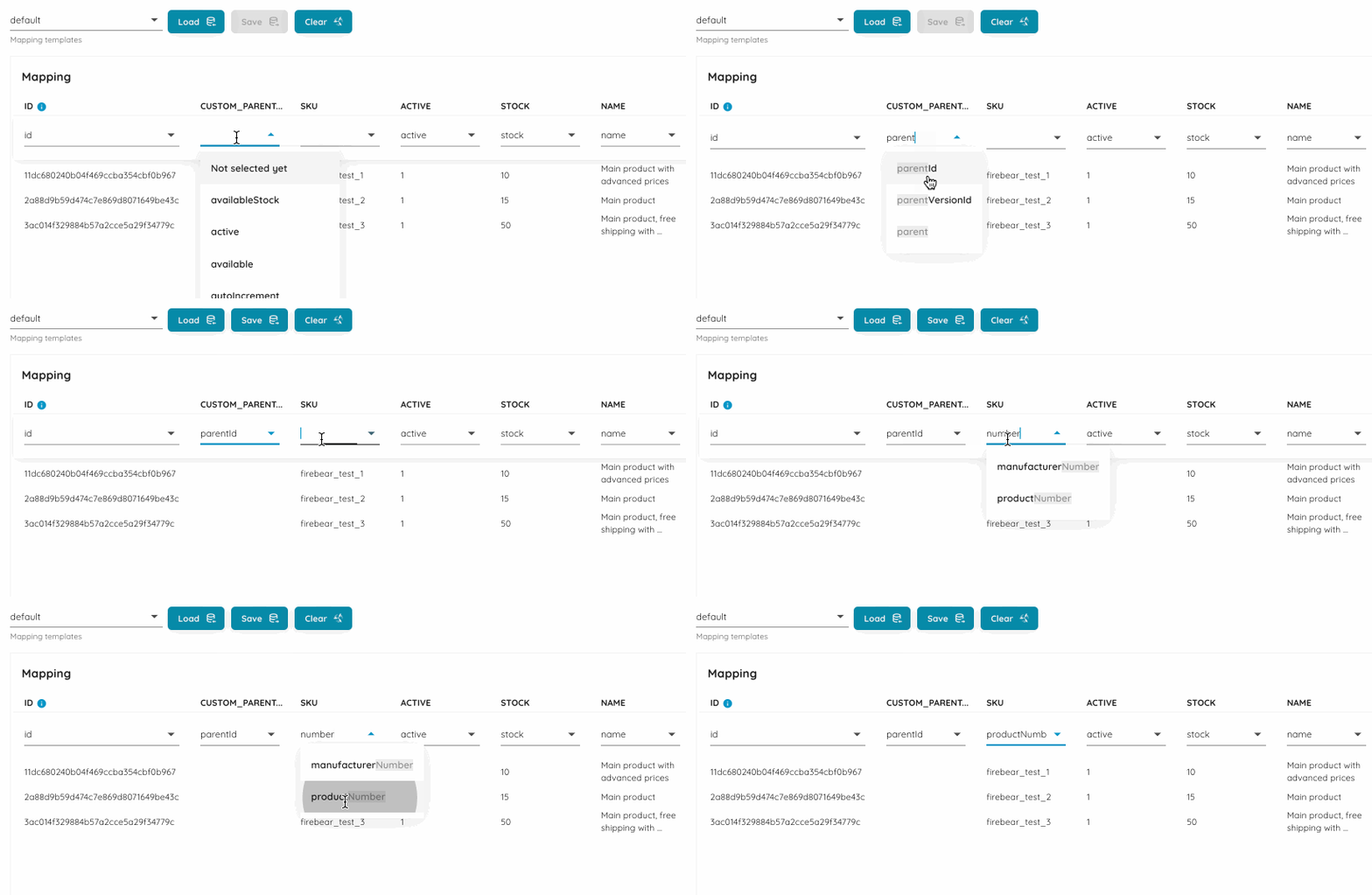
Shopware requires product properties to have specific names so the system can recognize them correctly. To accommodate this, we’ve made it possible for you to import files with property names that differ from Shopware’s naming conventions. This is where the mapping section comes into play:
- The first row displays the property names from the file you are importing.
- The second row allows you to select the corresponding properties from your Shopware store.
By matching these properties, you can import files with any naming format.
If your updates involve product variants, the mapping screen offers additional options. Here, you can choose to assign variants using either the parent product’s SKU or ID. You can also decide whether to add new variants to the existing ones or completely replace the old variants. This flexibility allows you to manage your products according to your specific needs and preferences.
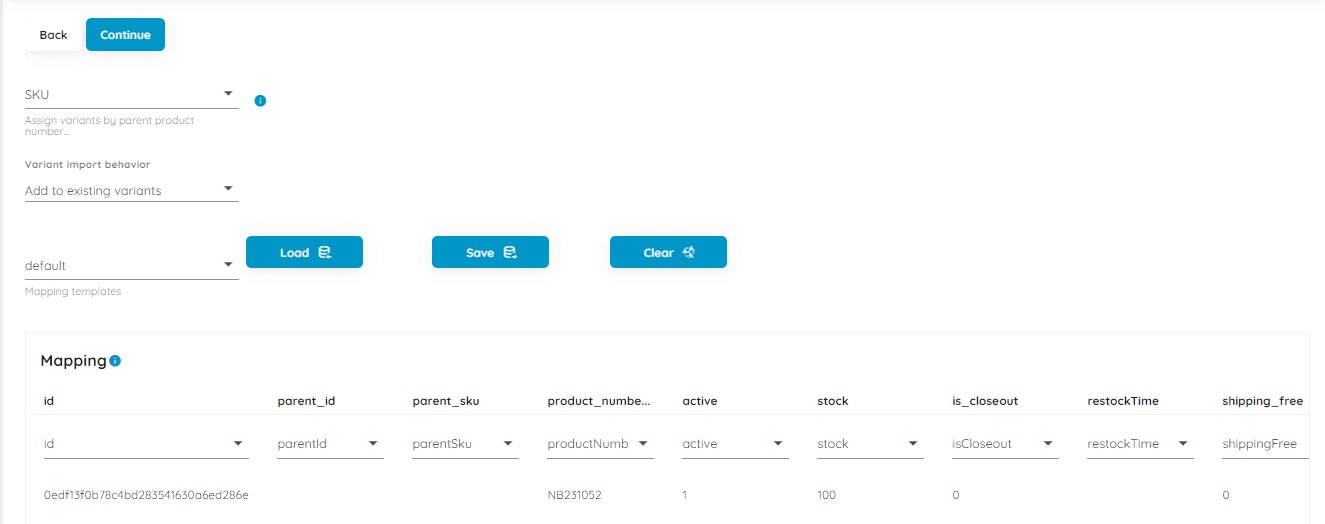
Mapping Templates
Section titled “Mapping Templates”To save you time, we’ve introduced mapping templates that allow you to quickly save and load the mappings you use frequently.
The mapping section includes a ‘Default’ template, which automatically matches the property names from your Shopware store with those in your imported file.
If you prefer, you can manually re-map the properties and save your template. Simply click the ‘Save’ button, choose a name for your template, and you can easily ‘Load’ it for future imports.
What Are Product Properties and How to Work with Them
Section titled “What Are Product Properties and How to Work with Them”Each Shopware 6 product has multiple fields, such as ‘Name,’ ‘Product Number,’ and ‘Manufacturer.’ These fields are known as product properties or attributes. Each property is associated with a database entity where its values are stored, and each has a dedicated internal name that doesn’t allow spaces.
When importing products, you’re directly interacting with the database, so it’s crucial to use the exact names of these properties as they appear in the database. For example, the Manufacturer is stored as ‘manufacturer_id,’ and the Product Number is stored as ‘product_number.’ You can refer to an exported file to see how these properties are named.
This is important because, during the import process, the column names in your file must match the internal names of the product properties in Shopware. This ensures that the extension correctly maps the imported values to the appropriate properties.
This is where the Mapping section of the Improved Import, Export & Mass Actions app comes into play.
For instance, if your supplier, Microsoft, sends you a CSV file with products labeled as ‘microsoft_product_number’ and ‘microsoft_name’ instead of the standard ‘product_number’ and ‘name,’ you can use the Mapping section to align these custom names with Shopware’s internal property names.

If you were to import a file like this, Shopware wouldn’t recognize that the ‘microsoft_product_number’ column corresponds to the ‘product_number’ property of your product. This is where the Mapping section becomes essential.
Simply match the column names from your imported file with the relevant product properties in Shopware. Once you’ve made these connections, you’re all set to proceed with the import. You can read more in our Shopware Mapping Guide.