Import Overview
In the following section, we’ll guide you through the process of importing data into Shopware 6 using the Improved Import, Export & Mass Actions app.
If your import setup fails because of connectivity, staging, or installation issues, check Troubleshooting.
Also, check our Shopware 6 Master Table for more detailed examples of importable tables.
Step 1: Select the File
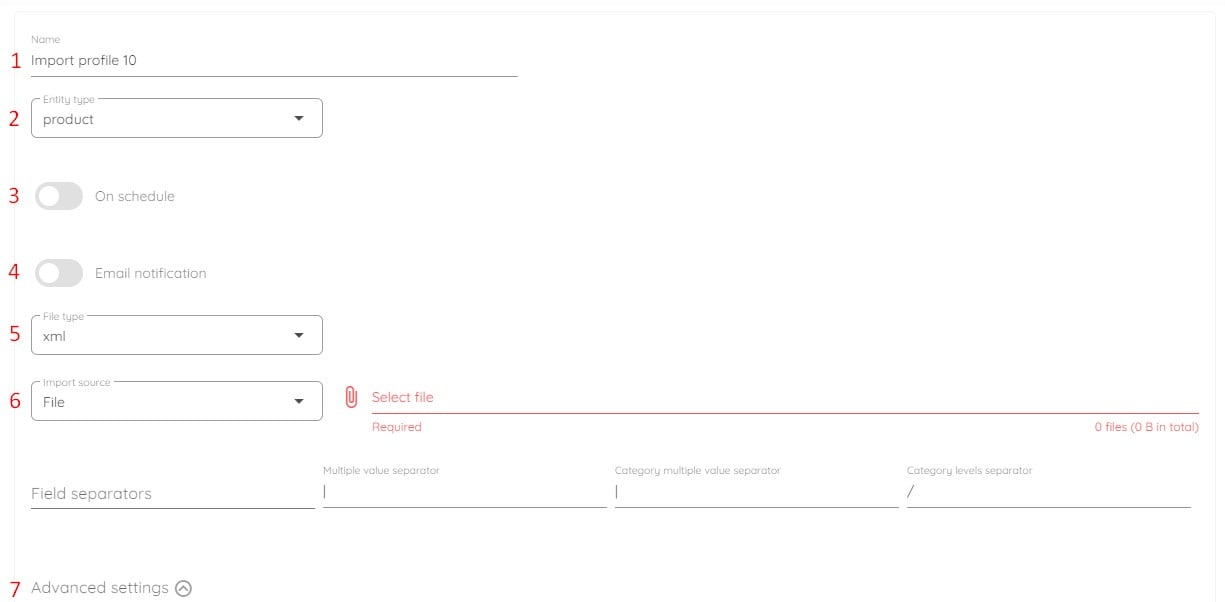
Section titled “Step 1: Select the File”Your very first step with Improved Import, Export & Mass Actions consists of the following activities:
-
Name your profile;
-
Select an entity you want to import (e.g., products or customers);
-
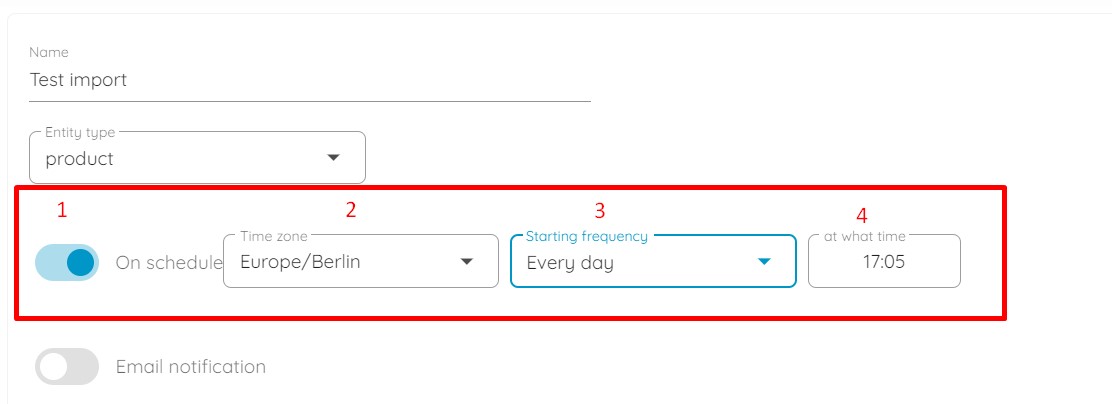
Create a schedule of updates. Turn on the toggle(1), choose your time zone(2) (you can type in the city instead of scrolling), specify your starting frequency(3) (every hour, day, week, or month), and configure additional parameters(4) (such as the exact time if you choose daily update or day and time if you decide to update once per week).
-
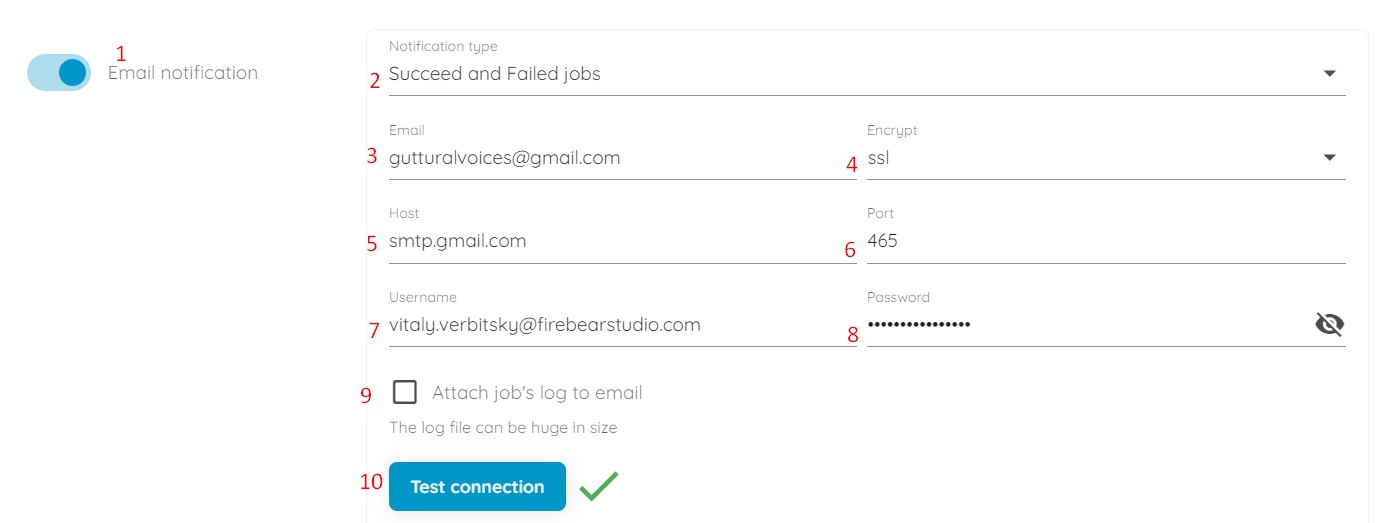
Configure email notifications;
-
Enable the notification toggle.
-
Choose your notification type: succeed, failed, or succeed and failed jobs.
-
Specify an email address to send notifications to.
-
Select the encryption.
-
Specify the host for your email address.
-
Type the port.
-
Specify a sender’s username (an email address).
-
Provide the corresponding password.
-
You can attach job logs to the notification emails. However, they may be huge in size.
-
-
Select the file you want to import. The app currently supports CSV, XML, and XLSX file formats. Additionally, you can specify the delimiters used in the CSV file manually, or click the “Auto detect delimiter” checkbox and let the extension do the job.
-
Choose an import source — see File Sources for details on FTP, URL, Google Drive, and Google Sheets.
-
Configure advanced settings that include:
- URL rewrite behavior;
- media replacement behavior;
- advanced prices replacement behavior;
- stock increment strategy;
- data transformation.
Advanced Settings
Section titled “Advanced Settings”URL Rewrite Behavior
Section titled “URL Rewrite Behavior”URL rewrite behavior:
- Display Warnings: When selected, the app alerts you if there are duplicate URLs in the imported file. If an imported product shares a URL with an existing product on your website, the app generates a new URL based on the product name.
- Increment Duplicate: With this option, the app imports products with duplicate URLs but modifies their URLs to follow the format “existing_url-n+1,” where “n” represents the duplicate number (starting at “0” for the first duplicate, resulting in “existing_url-1” after import).
- Force Overwrite: This option assigns the existing URLs to the imported products if duplicates are found in the import file. As a result, the imported products retain the existing URLs, while the original products are left without URLs.
Replace Media
Section titled “Replace Media”Replace media:
If this option is enabled, it deletes the existing product media and replaces it with the images from the imported file.
Replace Advanced Prices
Section titled “Replace Advanced Prices”Replace Advanced Prices:
Enable this option to overwrite the existing advanced prices of products on your website with those specified in your CSV file.
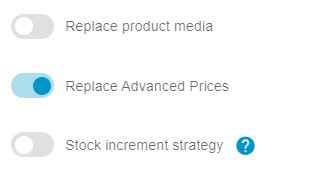
To combine the existing price tiers with the imported ones, keep the Replace Advanced Prices feature disabled.
Stock Increment Strategy
Section titled “Stock Increment Strategy”Stock increment strategy:
- If Disabled: The product quantity is updated to match the quantity specified in the import file. For example, if your store’s current quantity is 100 and the import file specifies 50, the store quantity will be updated to 50 after the import.
- If Enabled: The product quantity is increased by the amount specified in the import file. For instance, if the current quantity is 100 and the import file specifies 50, the store quantity will be updated to 150 after the import.
When this feature is enabled, a Reload Product Before Update toggle appears:
- If Disabled: The quantity is updated immediately, following the selected stock increment strategy, without reloading the product data.
- If Enabled: The product data is reloaded first, and then the quantity is updated according to the selected stock increment strategy.
Data Transformation is described separately.