Export Product Properties
By default, Shopware 6 does not export custom properties that you’ve added to your products, such as ‘Size’ or ‘Color.’ This means that when you export products, any custom attributes you’ve created won’t be included in the export file.
To address this, you can export custom product properties as a separate entity. However, this approach comes with a limitation: the exported file won’t include references to the products these properties are associated with. As a result, re-importing the products with their corresponding custom properties becomes impossible, since the connection between the products and their custom attributes is lost in the process.

With the Improved Import, Export & Mass Actions app, you can export custom properties along with your products in a convenient format. This format includes both the database ID of the custom property and the name as displayed in the store’s backend, making it easy to reference and manage.
The exported file might look like the screenshot below:

The columns highlighted in green represent custom product properties and follow this format:
color#0bde8db993684f8b92a713913aa3d9c3Where:
- color is the name of the property as it appears in the Shopware 6 backend.
- #0bde8db993684f8b92a713913aa3d9c3 is the ID of the property as stored in the database.
Importing Products with Custom Properties
Section titled “Importing Products with Custom Properties”When importing products along with these properties, you can import them using three different formats for the column names:
property_name#property_id— This is the default format you receive in the export file.property_name— You can also import the property by naming the column as it is labeled in the Shopware 6 admin panel.#property_id— Alternatively, you can use just the property ID, starting with the ”#” symbol.
During the mapping step of the import procedure, you’ll need to assign all custom properties from your file as follows:
- Locate the custom property, such as “color.”
- In the dropdown menu under store properties, select “propertiesSources”.
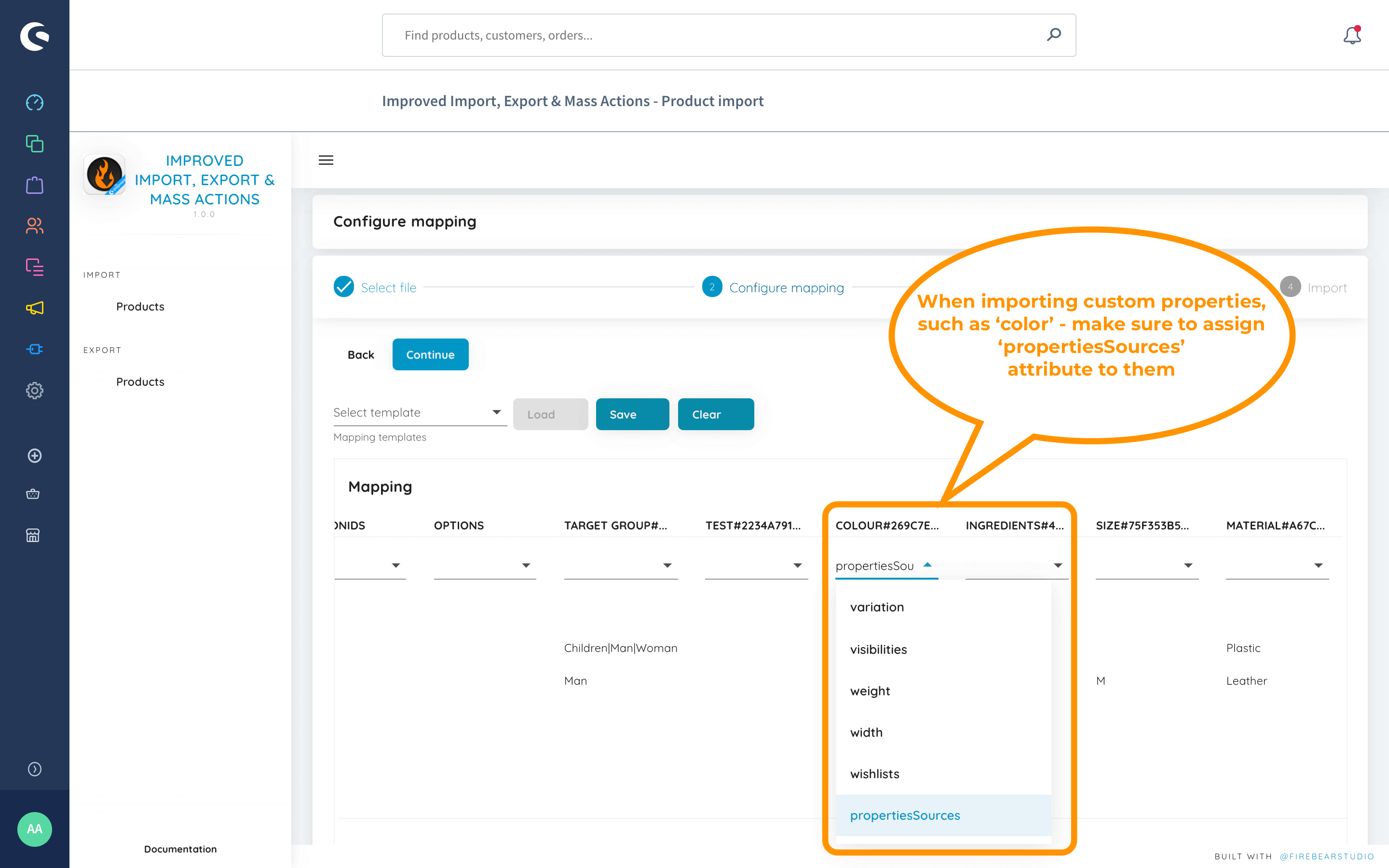
Assign “propertiesSources” to all the custom properties you are importing. This ensures that Shopware correctly interprets and applies them, regardless of the order or format you use.
We also recommend using both the property name and ID as your import format.
In the Shopware 6 backend, you can create multiple custom properties with the same name. Therefore, if you have several properties with identical names, you’ll need a way to distinguish them. This is where the property ID comes in, such as “#0bde8db993684f8b92a713913aa3d9c3”. The property ID is always unique and ensures that each property is correctly identified and applied without confusion.