Import Behavior Control
The Product Import Behavior Control feature lets you decide how the system should handle existing products during import. This setting applies to both parent products and their variants. This gives you more control over bulk operations and helps prevent accidental overwrites.
Import Behavior Options
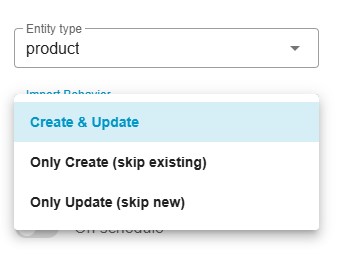
Section titled “Import Behavior Options”When creating or editing a Product import job, you will see a new Import Behavior selector in the Import Wizard. Three modes are available:
- Create & Update (default) — Imports all products from the file. New products are created, and existing products are updated.
- Only Create — Imports only products that do not yet exist in the system. Any product that already exists is skipped.
- Only Update — Updates only existing products. New products found in the file are ignored.
Select the behavior that best matches your workflow.
How It Works
Section titled “How It Works”1. Create & Update (Default)
Section titled “1. Create & Update (Default)”Description: Creates new products and updates existing ones (standard behavior)
How it works:
- If a product doesn’t exist → Creates it
- If a product exists → Updates it
- Applies to both parent products AND variants
Use Cases:
- Regular imports where you want to sync all data
- Full product catalog updates
- Initial imports and subsequent updates
Variant Behavior:
- New parent products are created with their variants
- Existing parent products are updated
- Existing variants are updated with new data
- New variants are added to existing parents
2. Only Create (Skip Existing)
Section titled “2. Only Create (Skip Existing)”Description: Only creates new products. Skips existing products and variants.
How it works:
- If a product doesn’t exist → Creates it
- If a product exists → Skips it entirely
- Applies to both parent products AND variants
Use Cases:
- Adding new products without touching the existing catalog
- Importing new product lines while keeping current data intact
- Preventing accidental overwrites during catalog expansion
Variant Behavior:
- New parent products are created with all their variants
- Existing parent products are skipped (no updates, no new variants added)
- If parent exists but variant doesn’t → Variant is still skipped (because parent is skipped)
- This mode is conservative: it won’t modify existing product structures
Important: This mode checks existence at the parent product level. If the parent exists, the entire product (including any new variants) is skipped.
3. Only Update (Skip New)
Section titled “3. Only Update (Skip New)”Description: Only updates existing products. Skips new products and variants.
How it works:
- If a product doesn’t exist → Skips it
- If a product exists → Updates it
- Applies to both parent products AND variants
Use Cases:
- Updating prices, stock, or descriptions for existing catalog
- Bulk updates without adding new products
- Maintaining existing catalog structure
Variant Behavior:
- New parent products are skipped (not created)
- Existing parent products are updated
- Existing variants are updated with new data
- New variants for existing parents are skipped (not created)
Important: This mode only updates what already exists. It will not expand your catalog with new products or variants.
Key Points for Variants
Section titled “Key Points for Variants”-
Existence Check: The system determines if a product/variant exists by checking:
- Product Number (SKU)
- EAN/GTIN if configured
-
Parent-Variant Relationship:
- Variants are always children of parent products
- Import behavior applies to both levels independently
- In “Only Create” mode: if parent exists, new variants are not added
- In “Only Update” mode: if variant doesn’t exist, it’s not created
-
Performance Impact:
- “Only Create” and “Only Update” modes skip existence checks for items that don’t match the criteria
- This can significantly speed up imports for large catalogs
-
Data Safety:
- Use “Only Create” when you want to preserve existing product data
- Use “Only Update” when you want to maintain catalog structure
- Use “Create & Update” for full synchronization
Recommendations
Section titled “Recommendations”- First Import: Use “Create & Update” (default)
- Adding New Products: Use “Only Create” to avoid touching existing items
- Price/Stock Updates: Use “Only Update” to avoid creating duplicates
- Full Sync: Use “Create & Update” for complete data synchronization